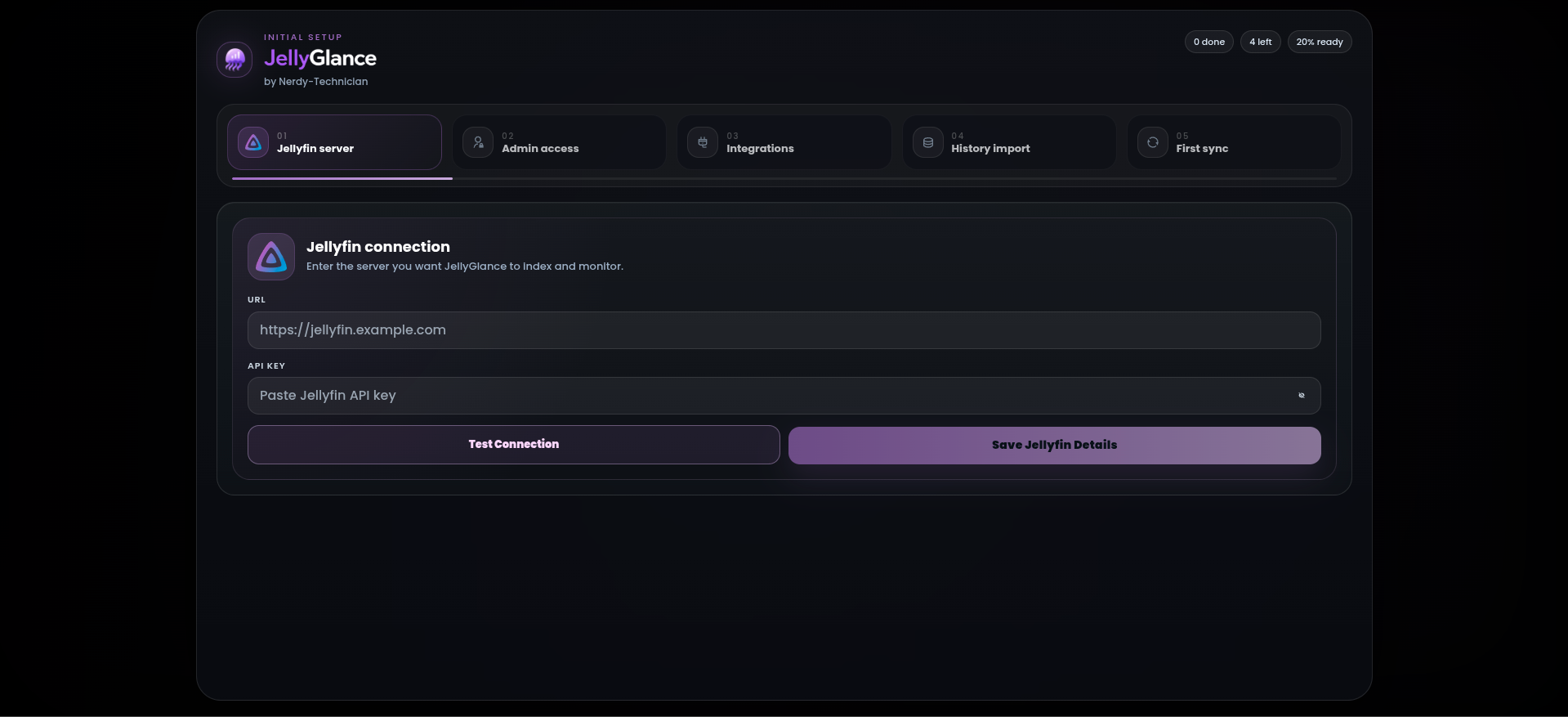
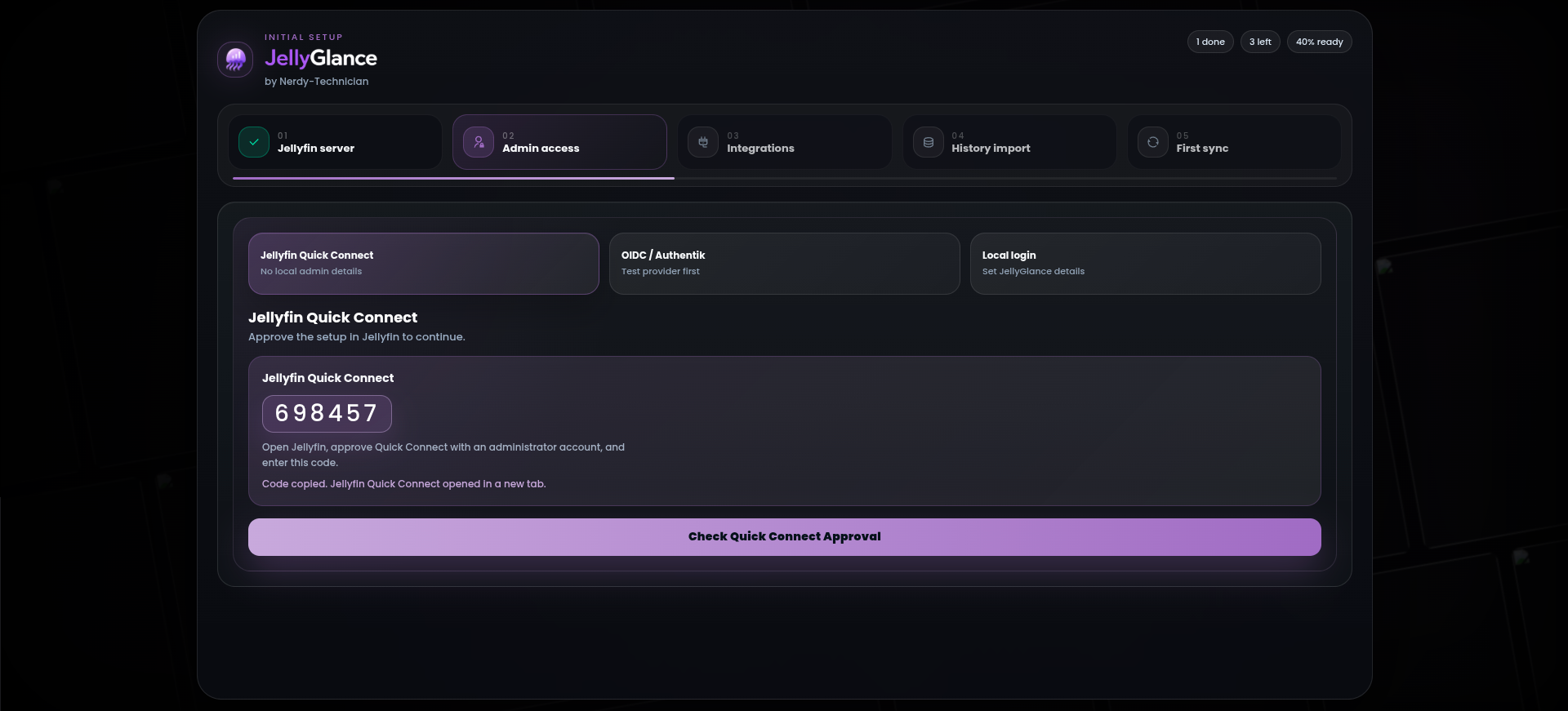
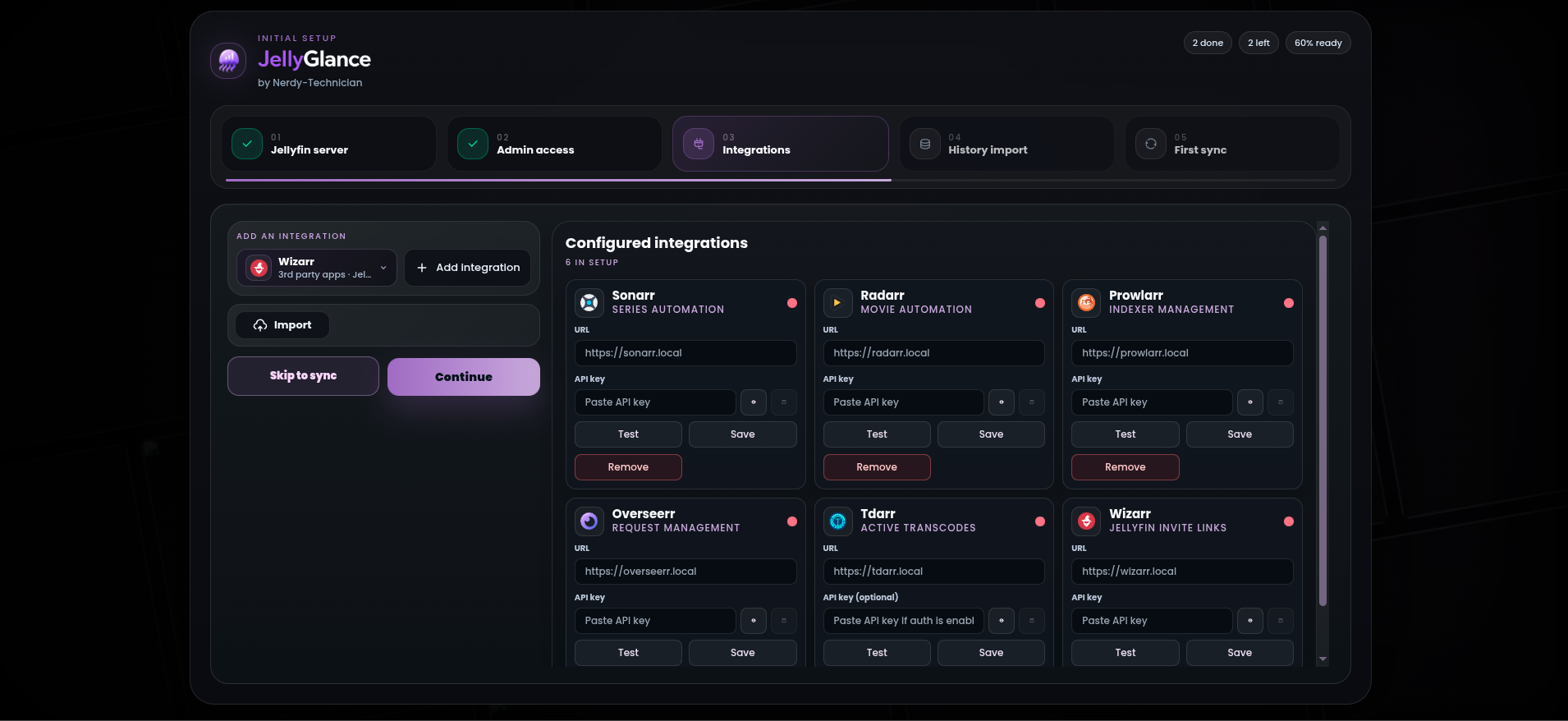
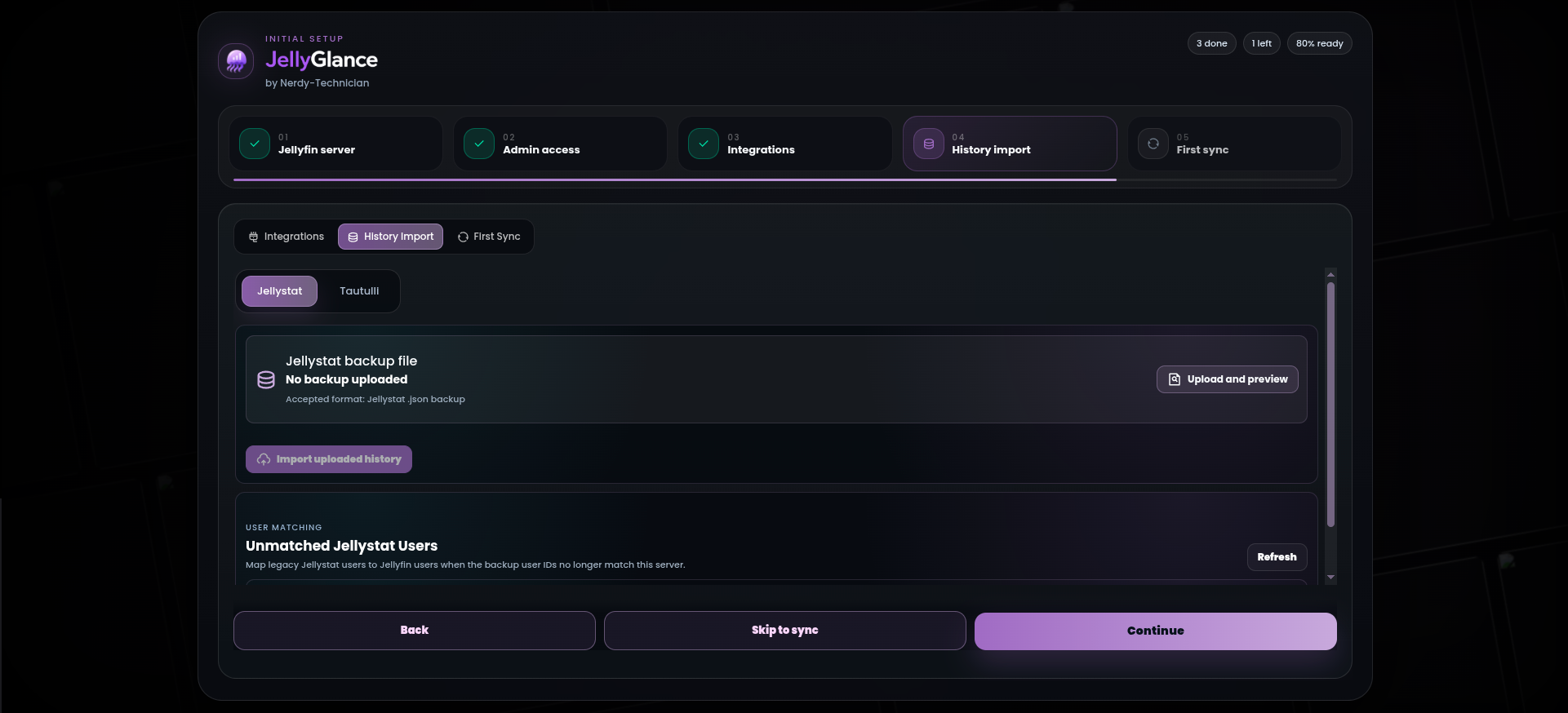
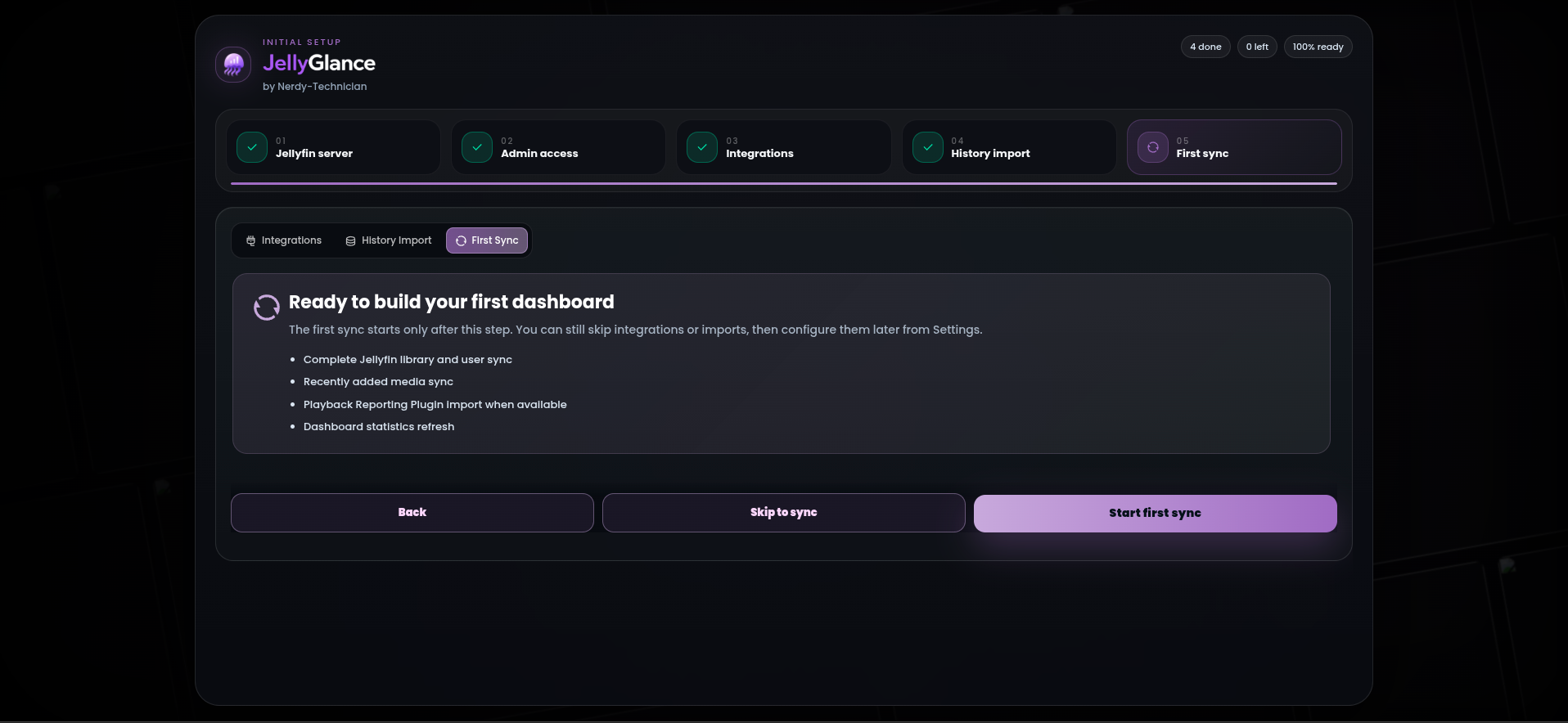
The first-run wizard walks through Jellyfin connection, authentication, optional integrations, legacy history import, and the first sync. The integrations step is intentionally lighter than the full Settings page: choose an app, add it to setup, then fill in only the services you want ready before JellyGlance builds its first dashboard cache.
Connect Jellyfin with URL and API key validation.Choose Quick Connect, OIDC, or local JellyGlance admin access.Add only the integrations you want ready for the first sync.Optionally import older Tautulli or Jellystat watch history.Start the initial Jellyfin sync and dashboard build.
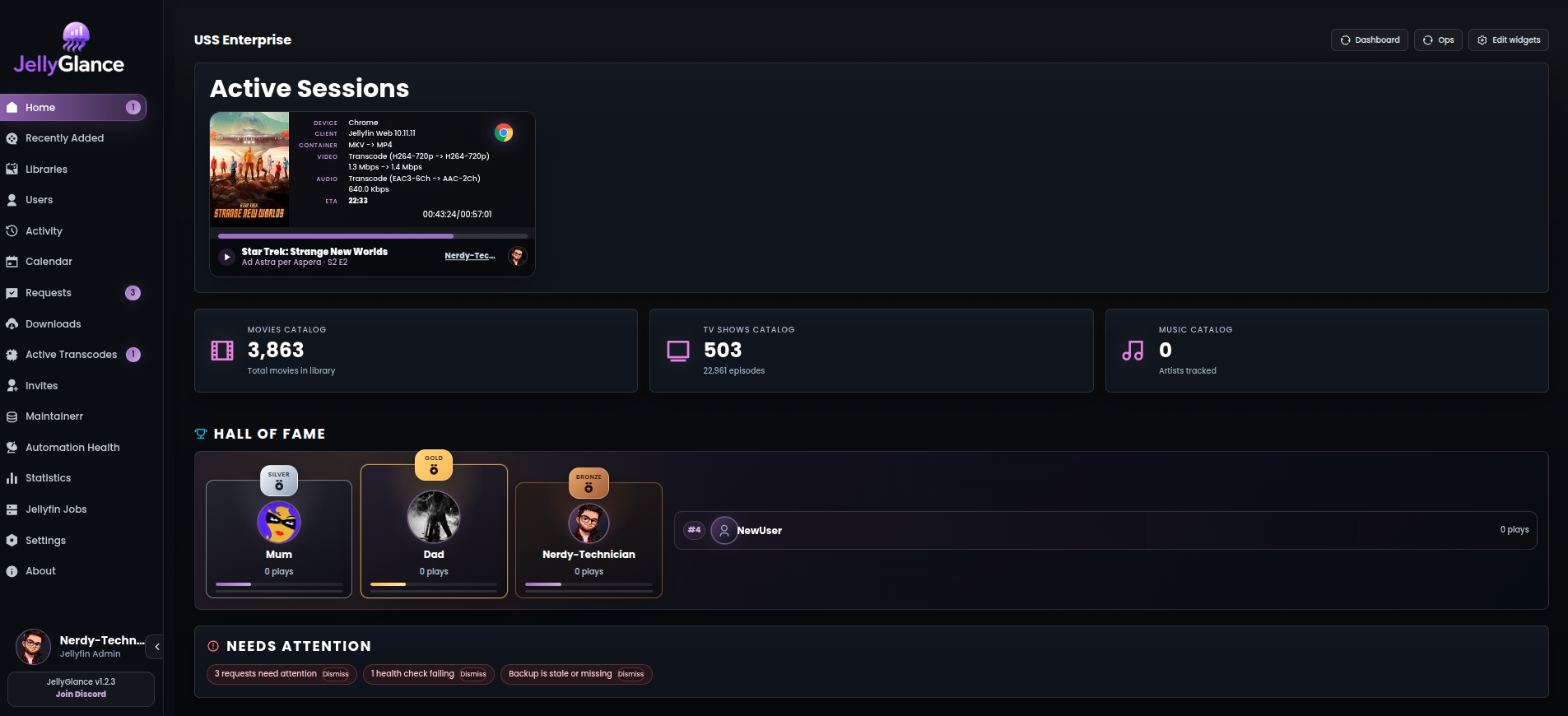
Home is the daily command center. It brings together active sessions, recently added media, library health, activity signals, request/download status, automation health, Tdarr transcodes, Wizarr invites, Maintainerr cleanup, Hall of Fame, and operational alerts. The layout can be reordered, resized, hidden, and tuned for kiosk mode.
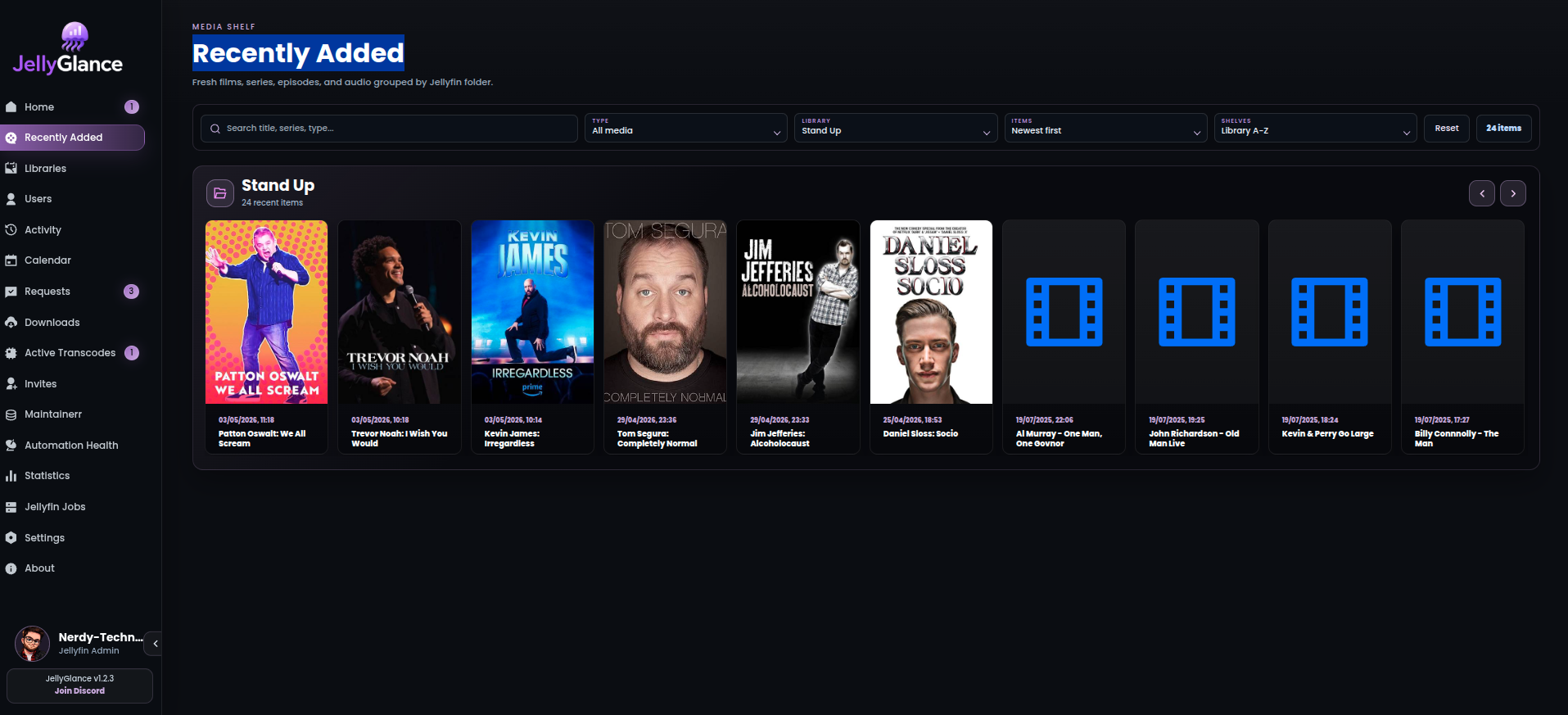
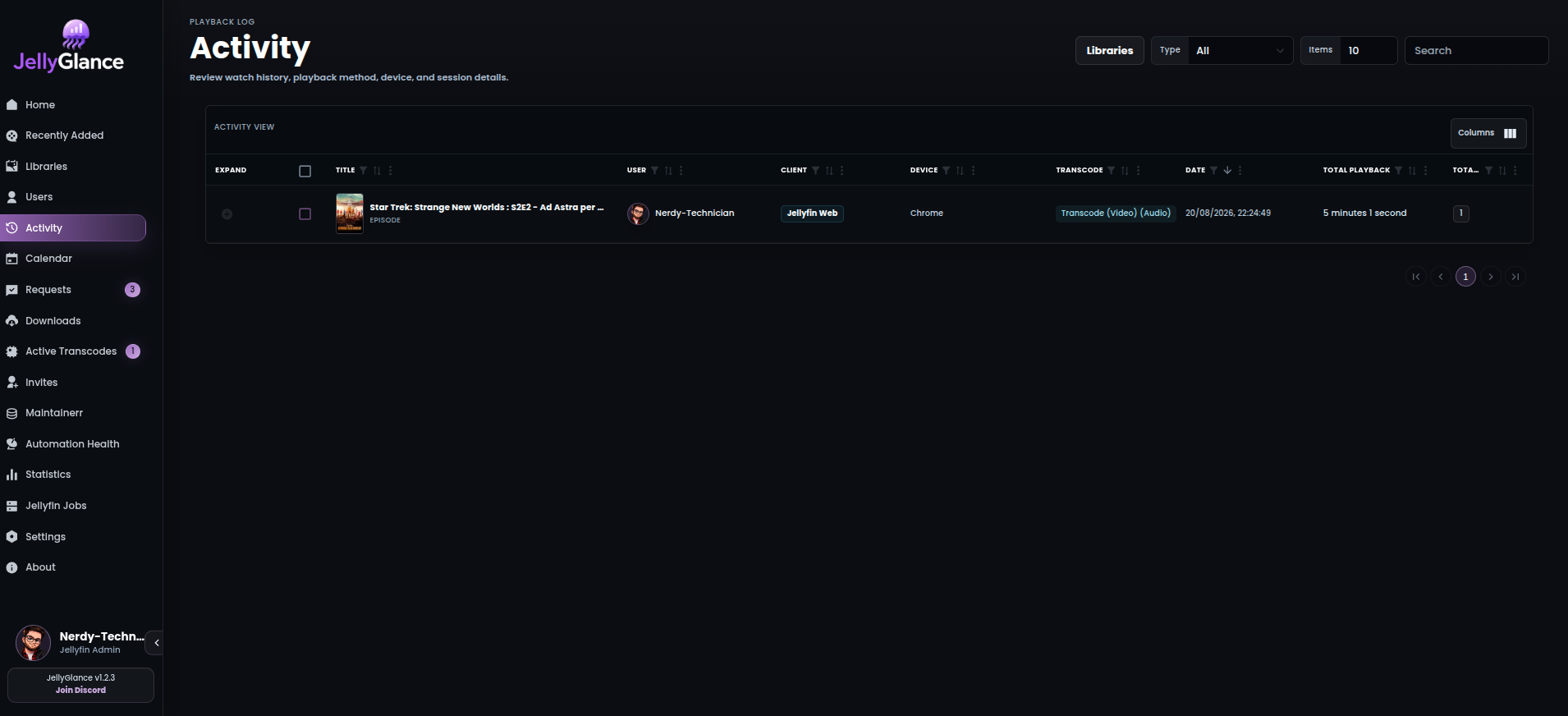
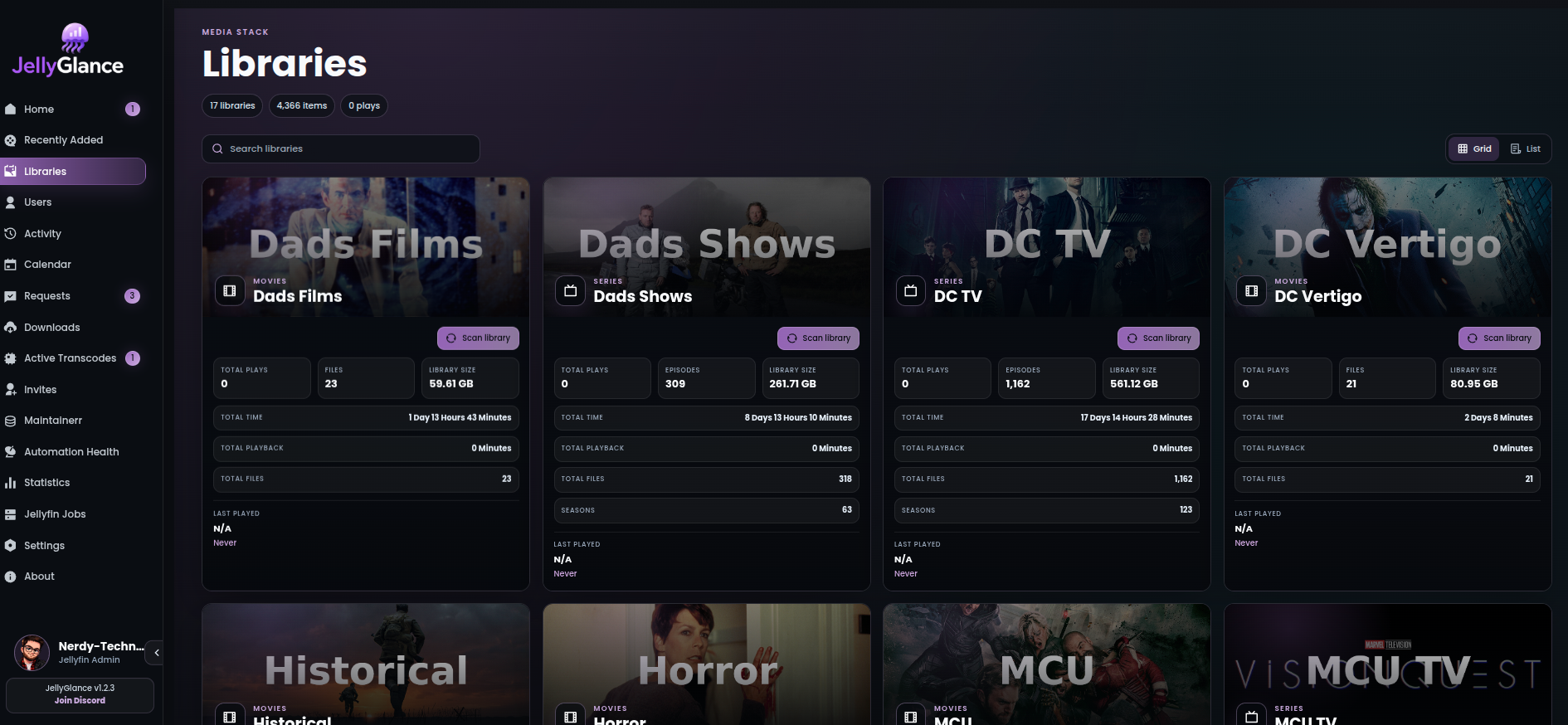
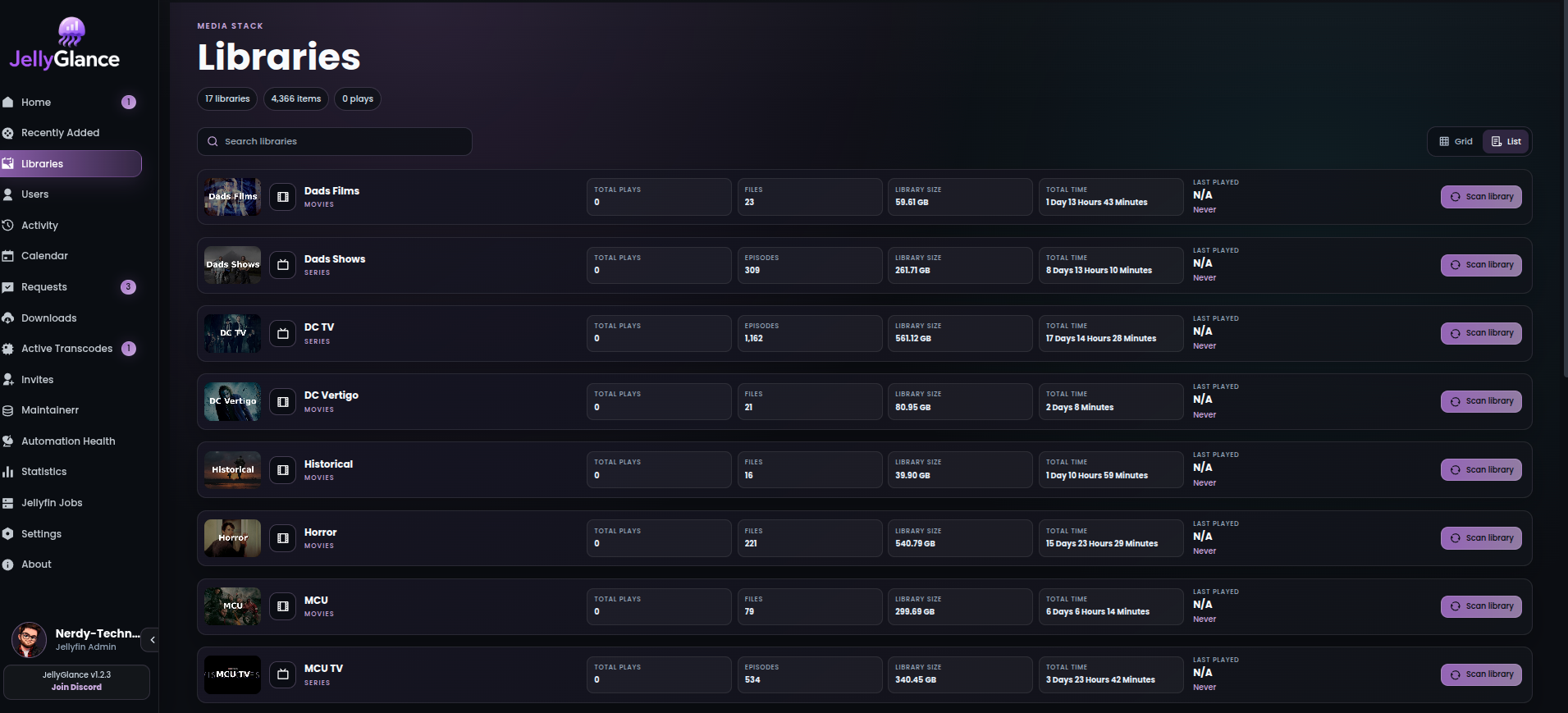
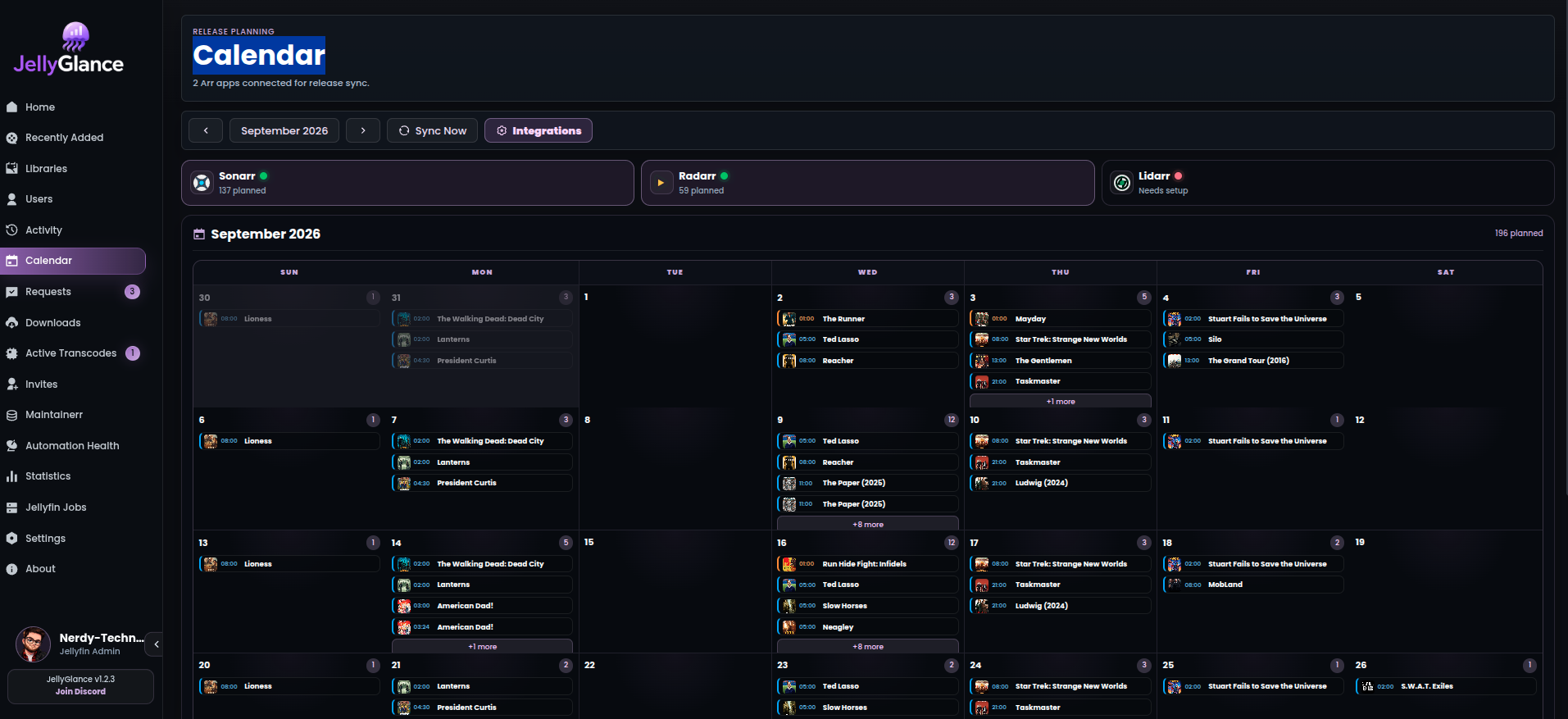
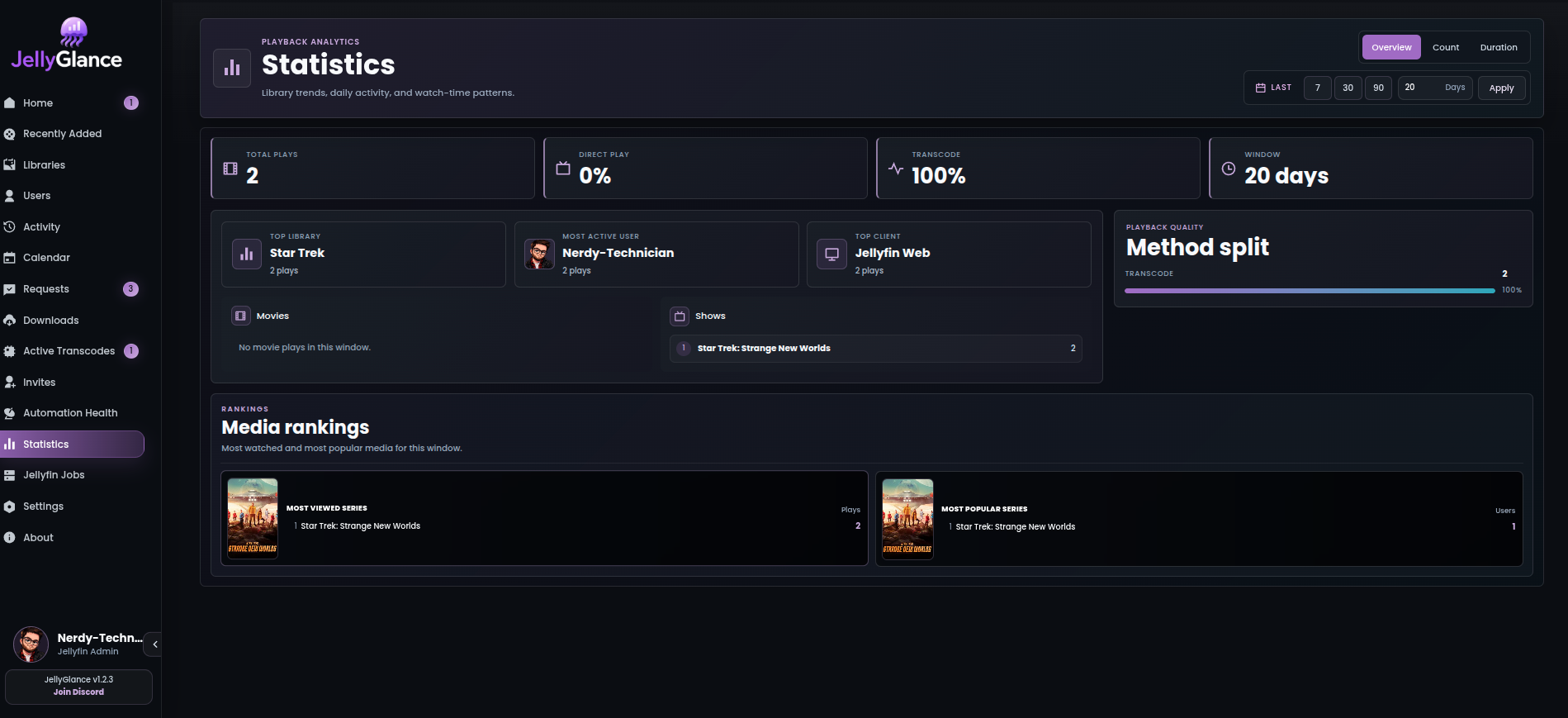
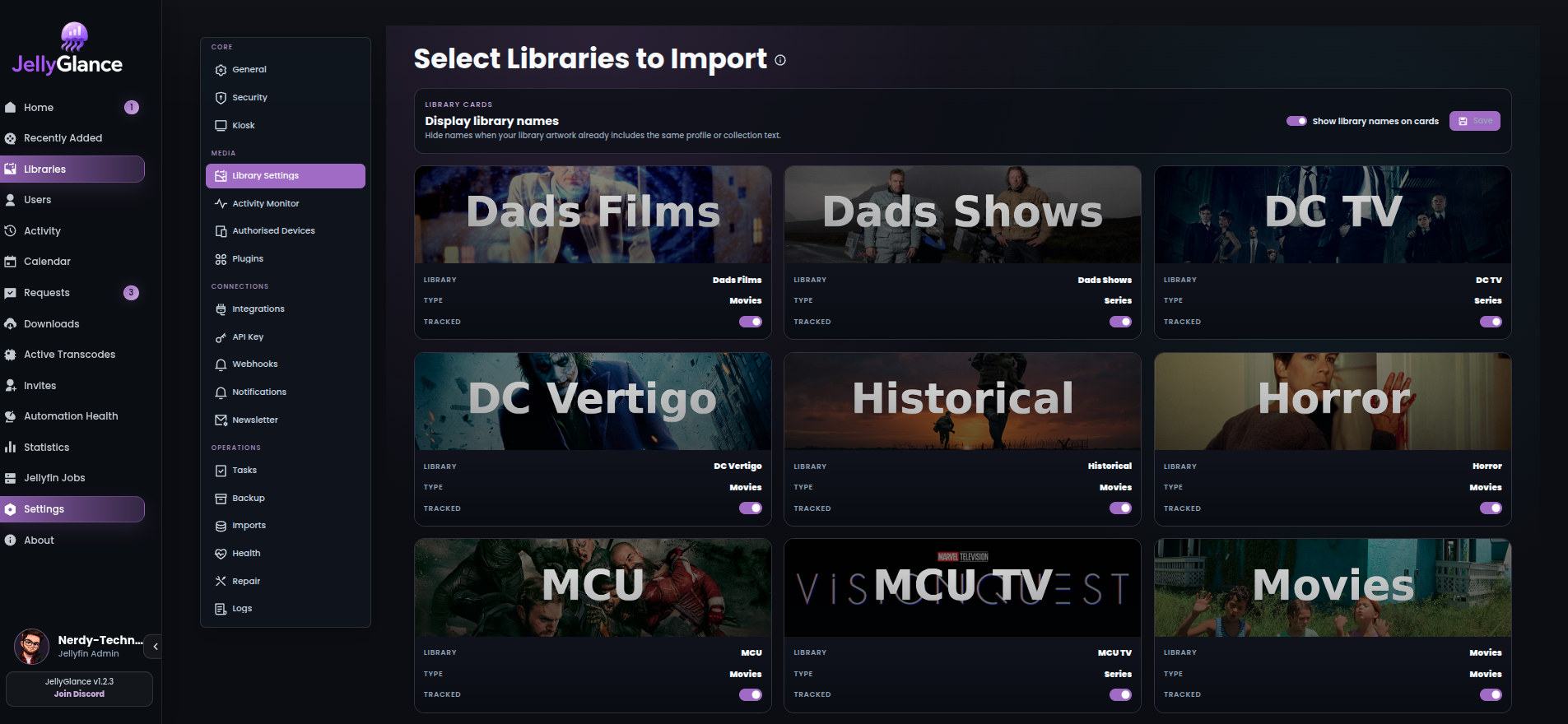
Recently Added highlights fresh Jellyfin content with poster-first browsing.Activity gives searchable playback history with users, clients, methods, durations, and media context.Libraries grid view focuses on artwork, counts, and quick scan actions.Libraries list view is denser for admin review and bulk checking.Calendar collects upcoming Sonarr, Radarr, and Lidarr releases.Statistics summarizes watch time, top users, playback methods, libraries, and trends.
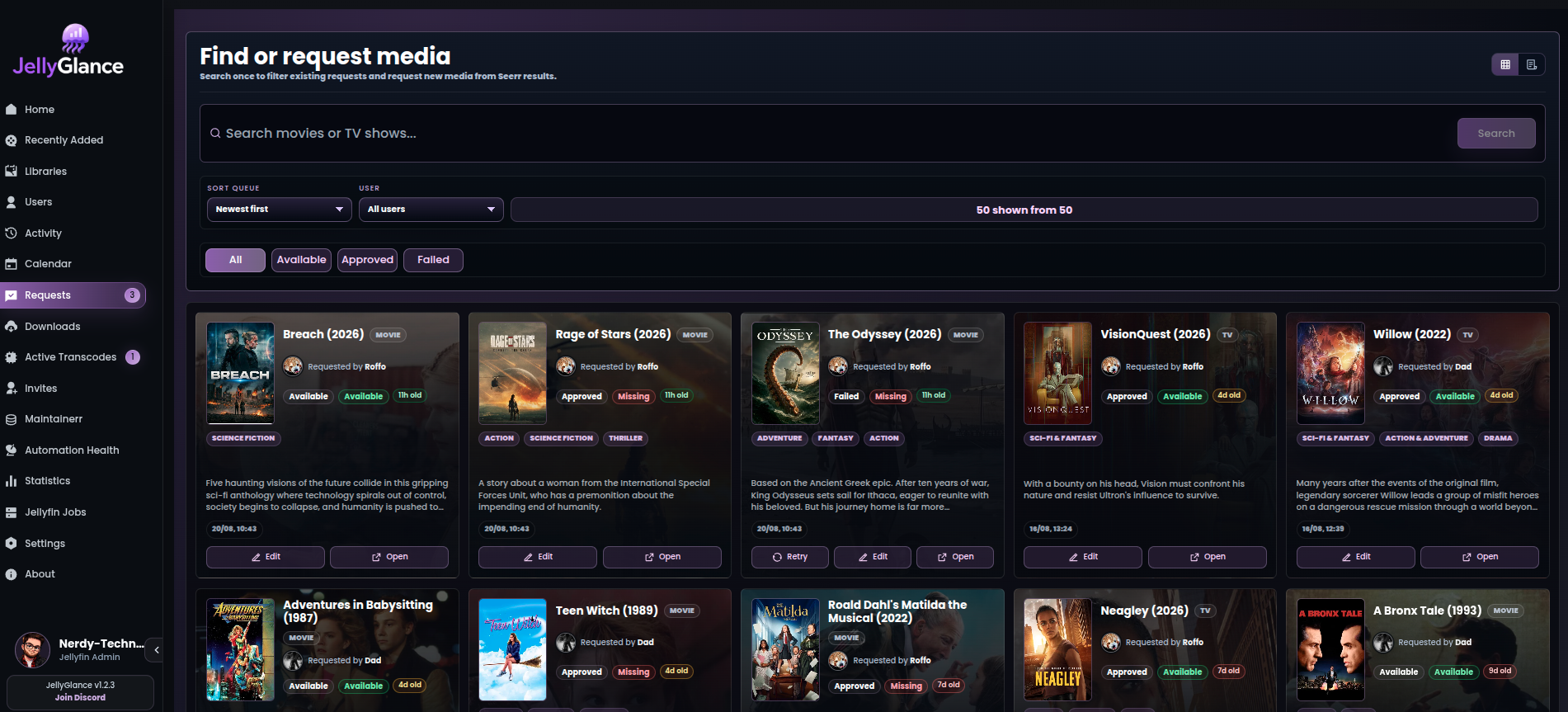
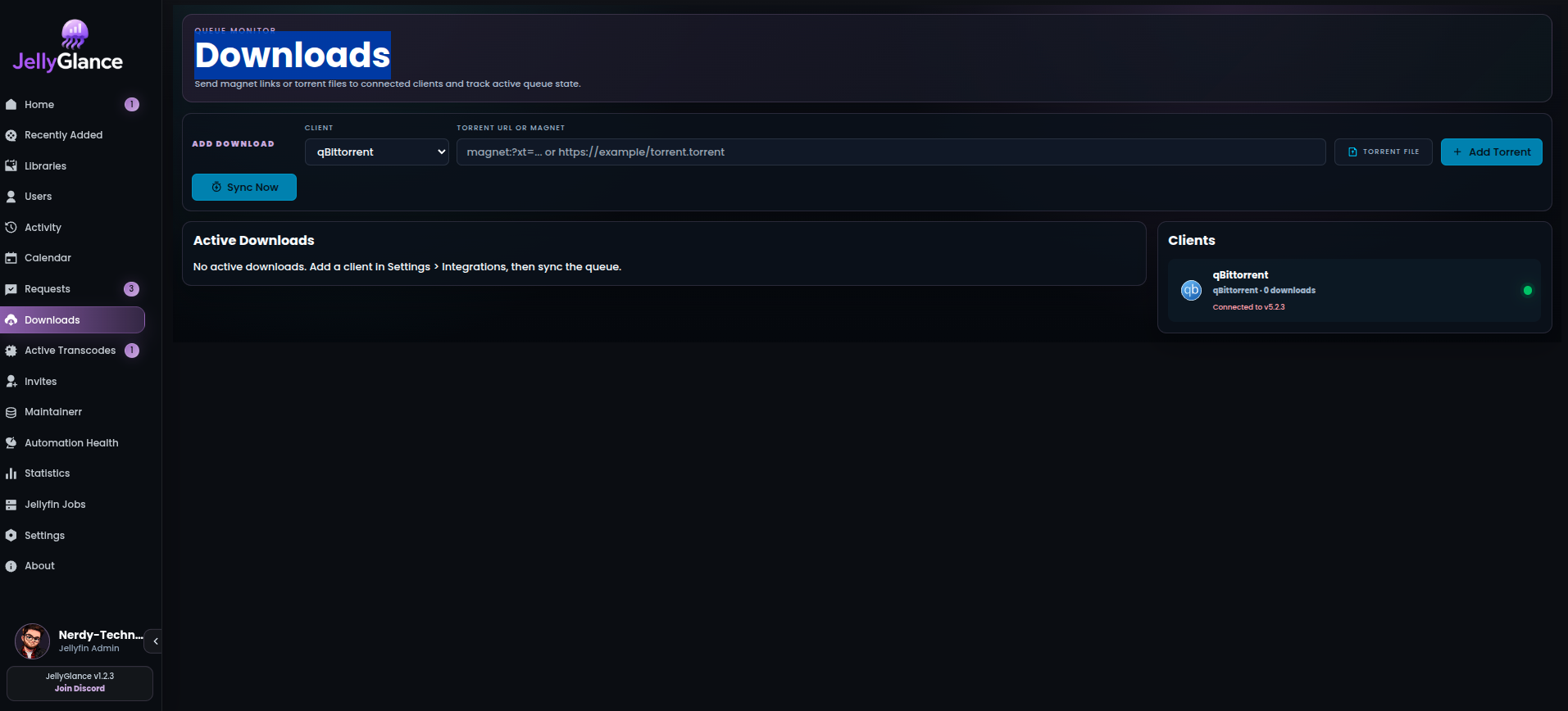
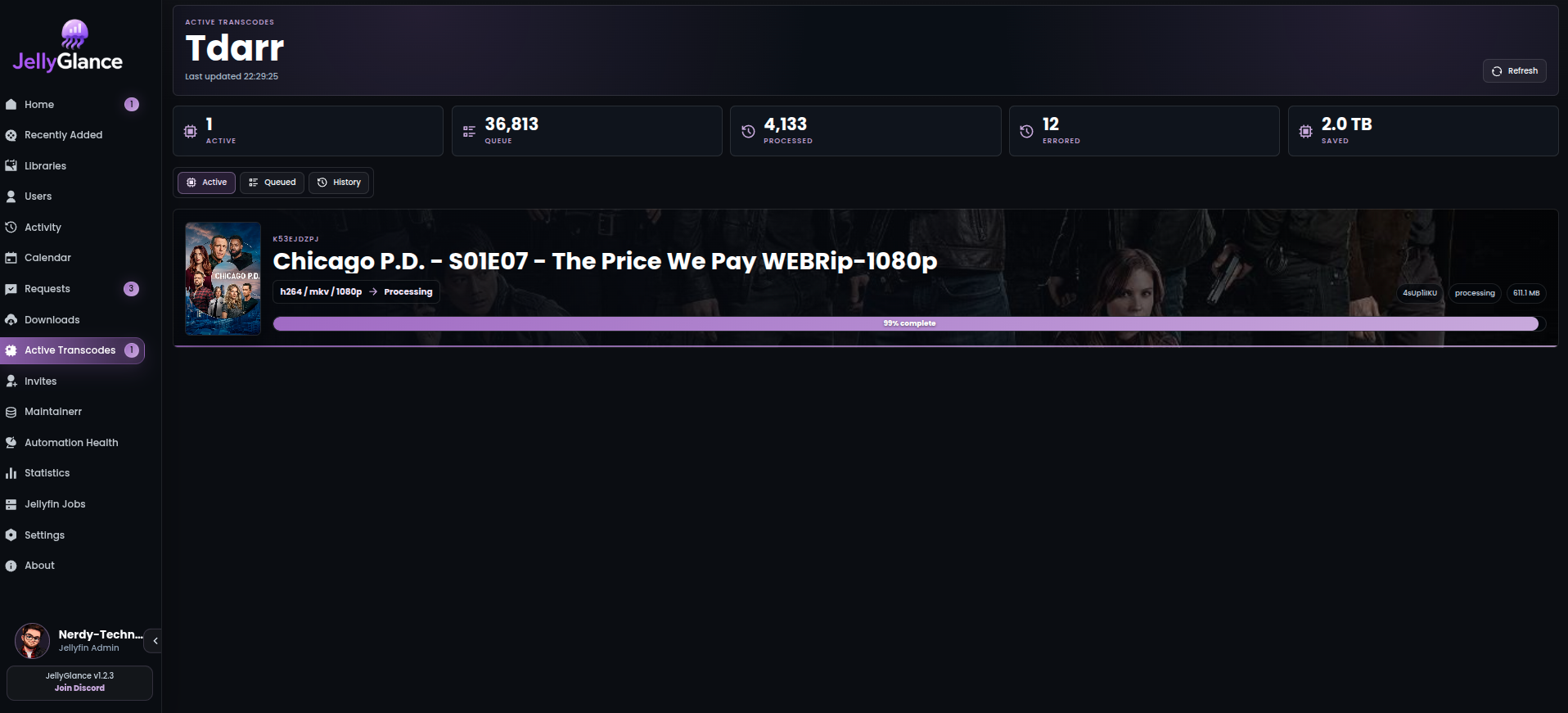
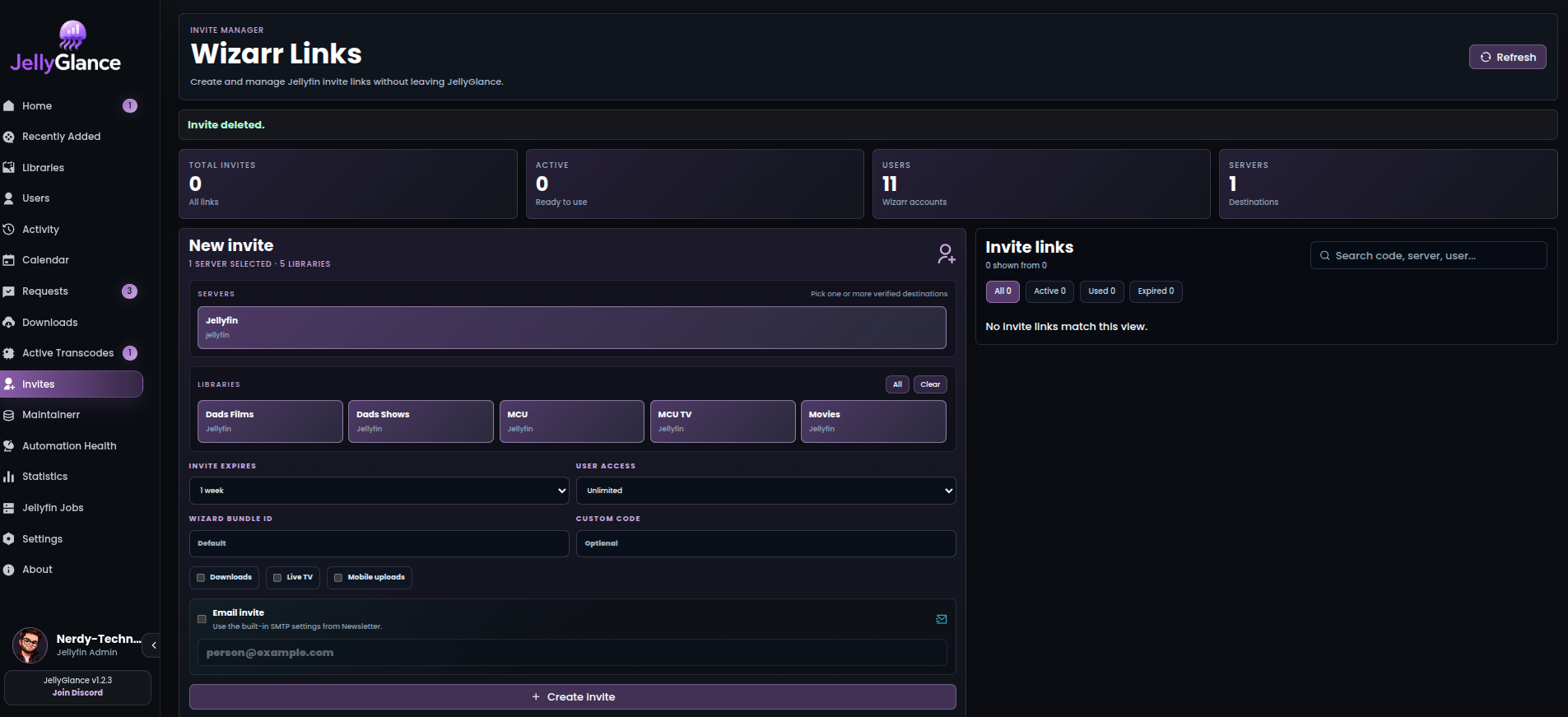
Requests brings Jellyseerr and Overseerr items into JellyGlance with posters, requester context, status filters, and admin actions.Downloads shows torrent and Usenet queues, progress, stalled items, and integration health.Active Transcodes tracks Tdarr active jobs, queued files, history, conversion details, artwork, and live progress.Invites lets you create, copy, open, and manage Wizarr invite links from JellyGlance.
Requests, Downloads, Active Transcodes, Invites, Maintainerr, and Automation Health stay hidden from navigation until their matching integrations are configured, so clean installs do not show empty pages.
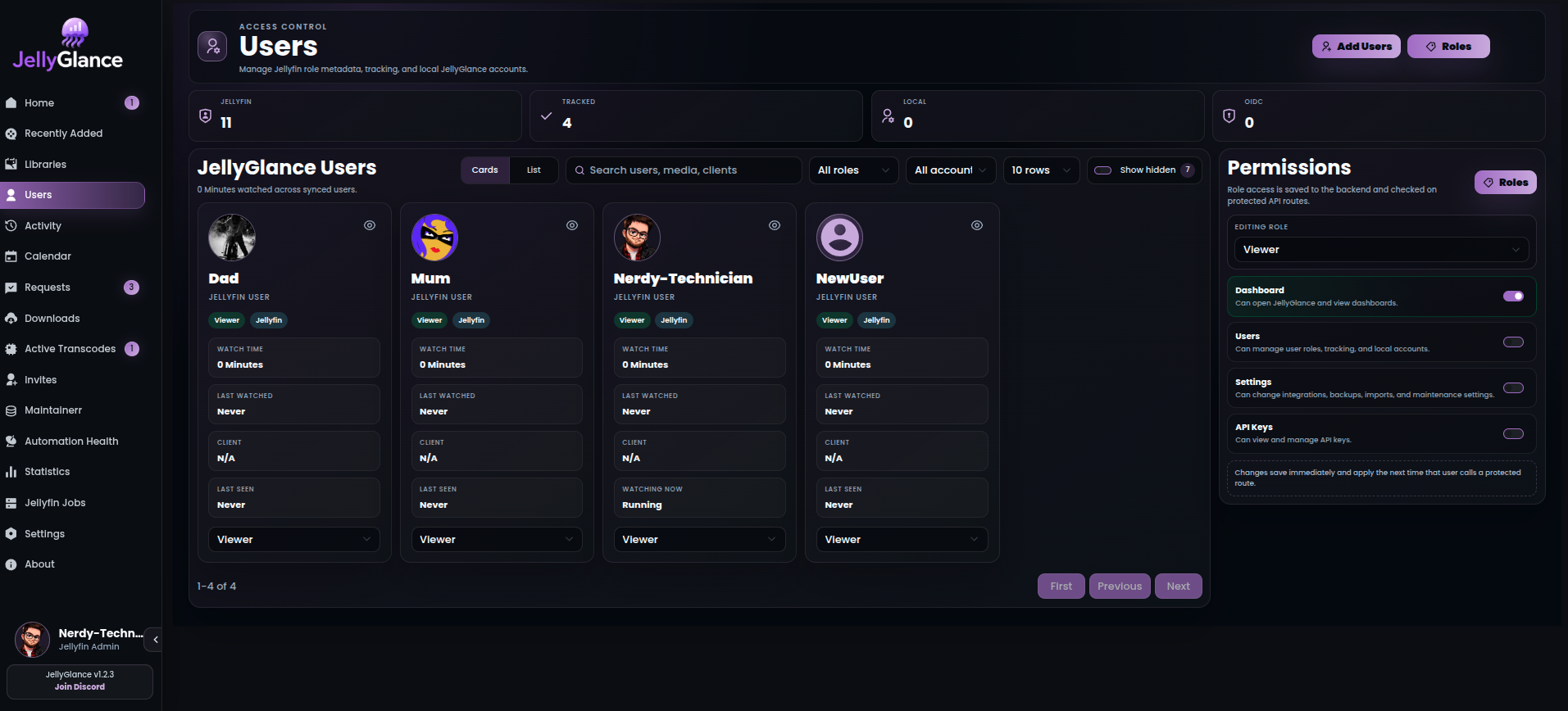
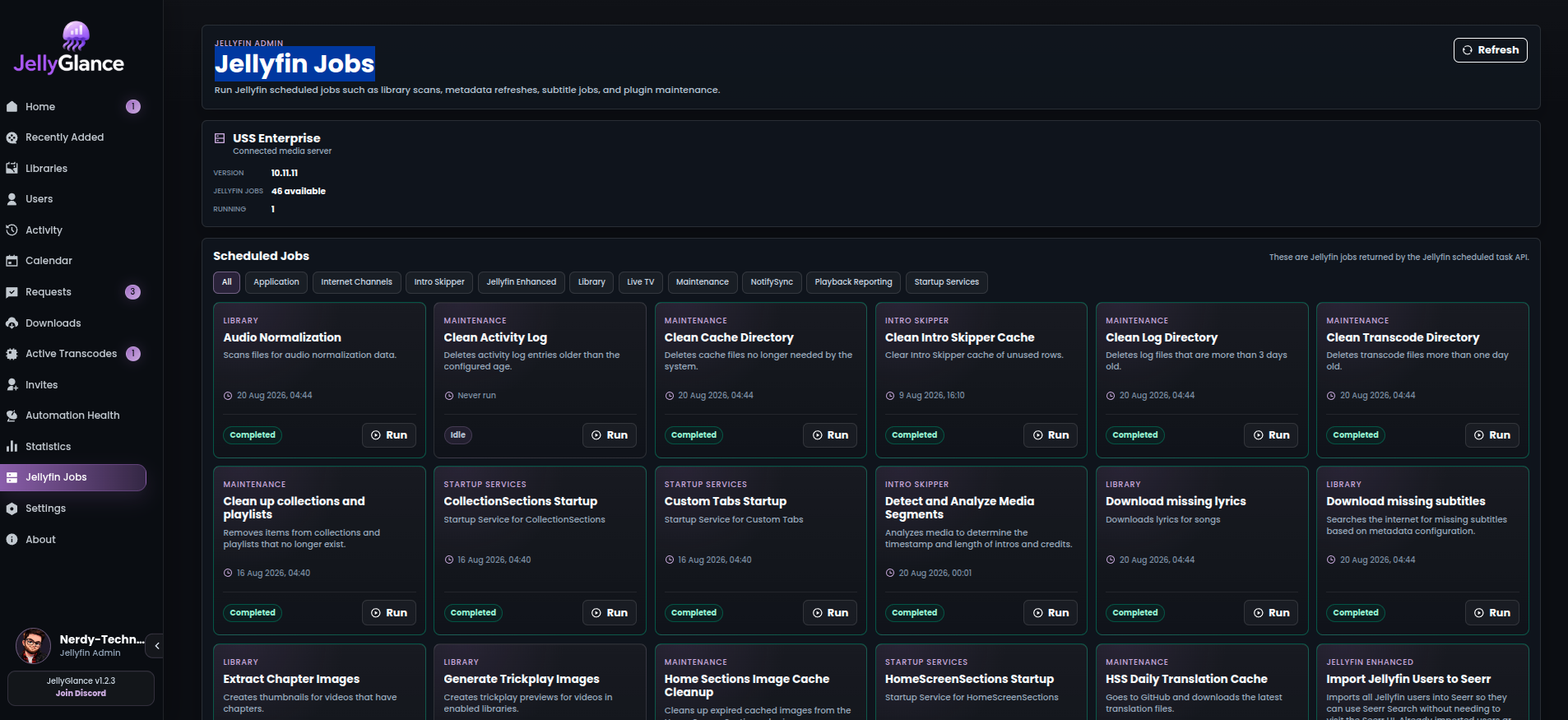
Users combines Jellyfin role metadata, local JellyGlance accounts, tracking visibility, and profile links.Jellyfin Jobs gives admins scheduled task status, categories, last run state, and manual run controls.
User visibility controls can hide selected Jellyfin users from stats and activity when needed. Profile pages continue from here with personal watch history, media rails, favourites, watchlists, and recommendations.
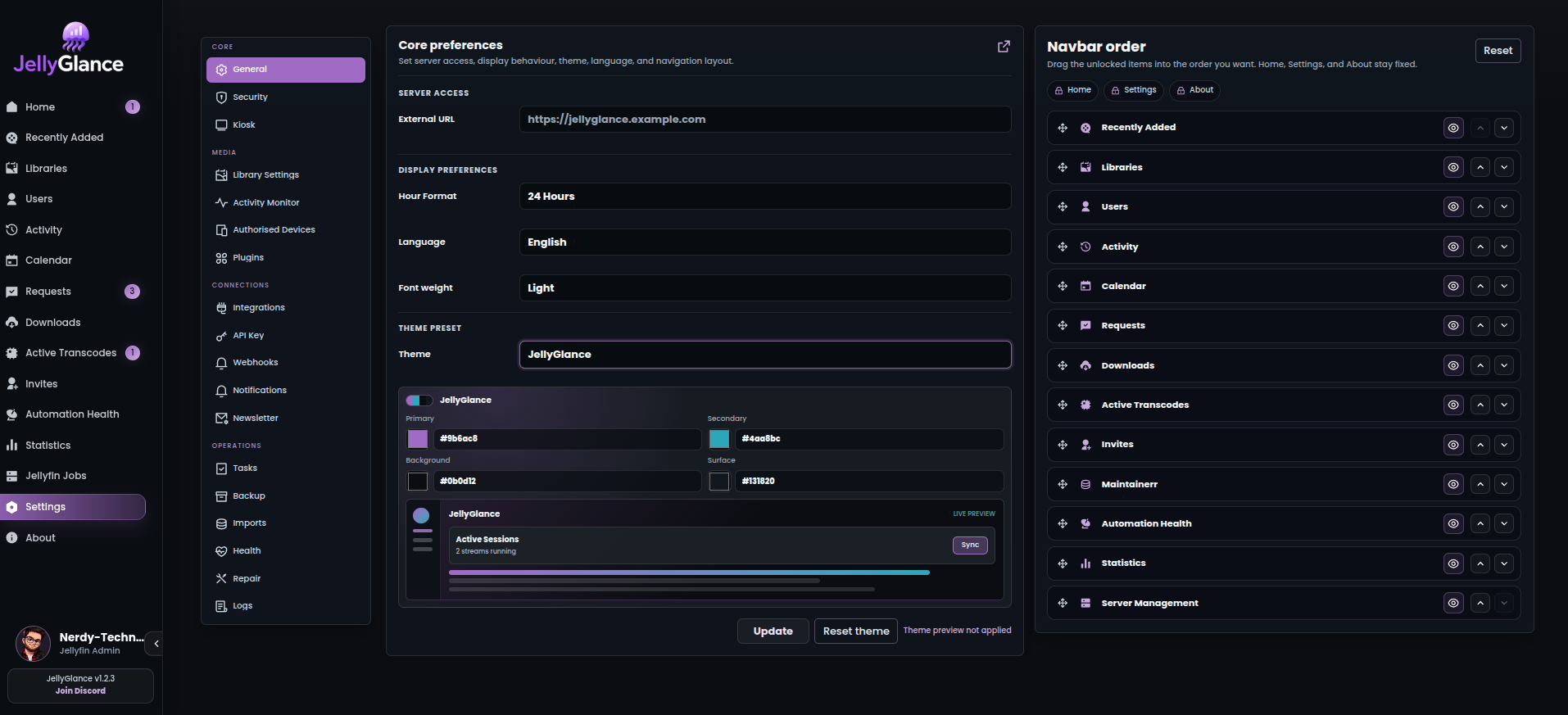
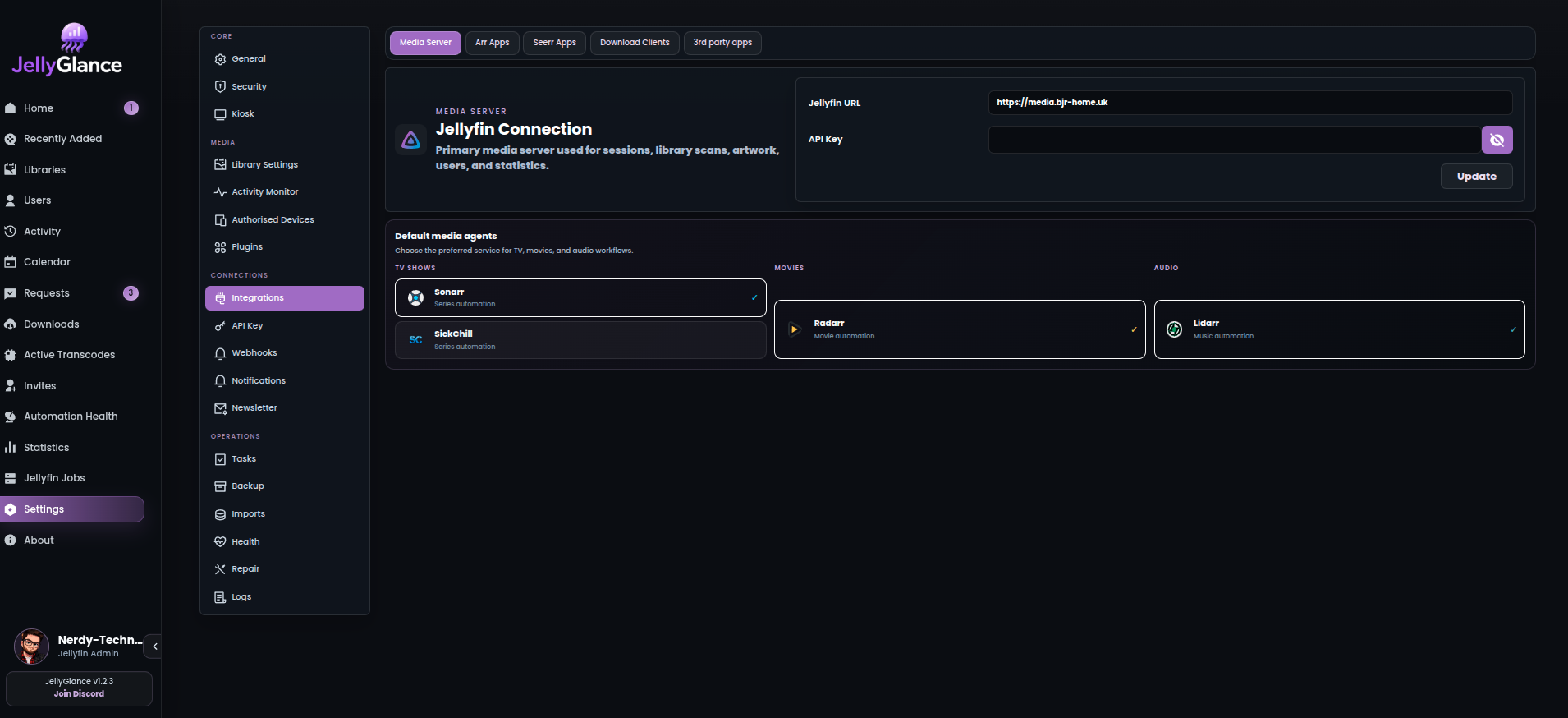
Settings is organized into category-based sections with a collapsible sidebar. The full integrations page remains more powerful than the first-run version, with import/export, health history, service testing, and detailed app cards.
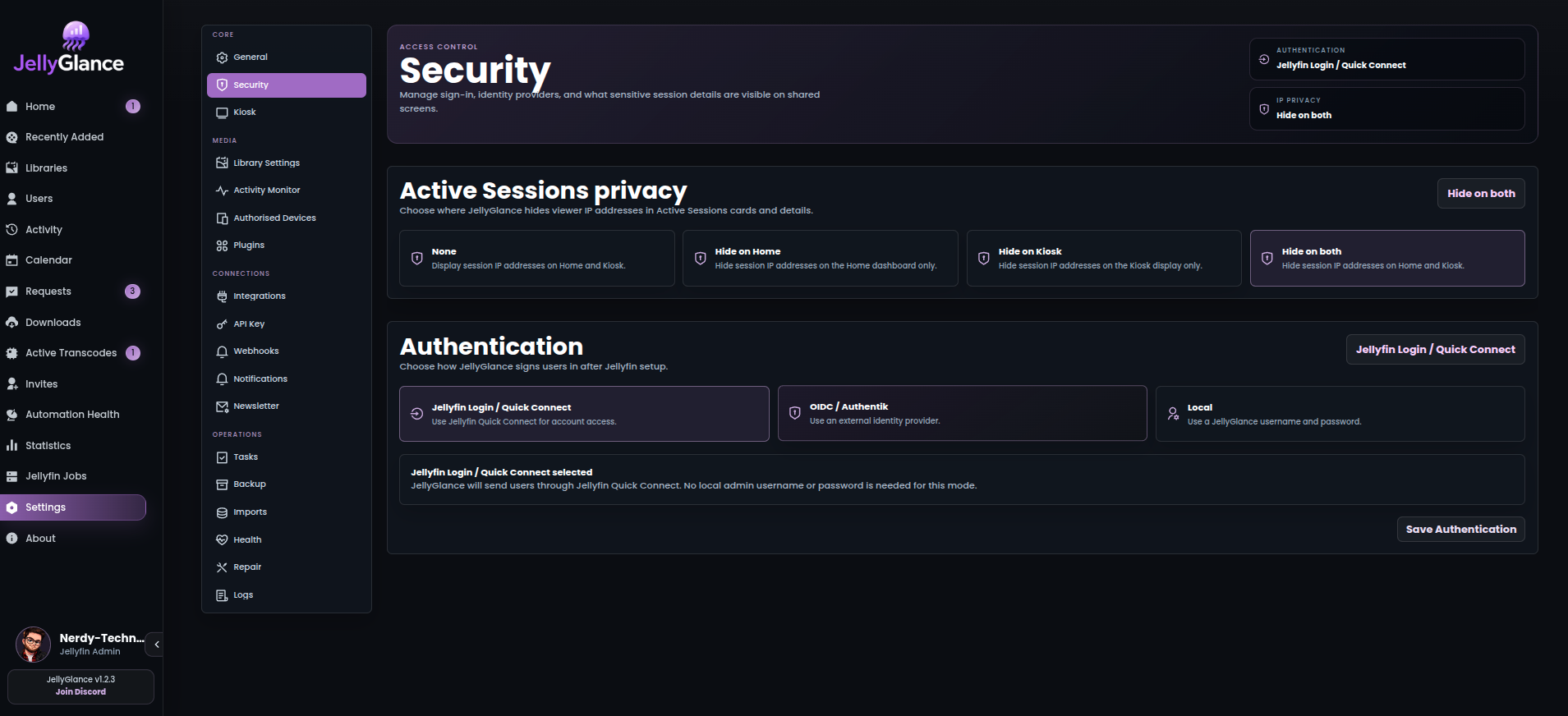
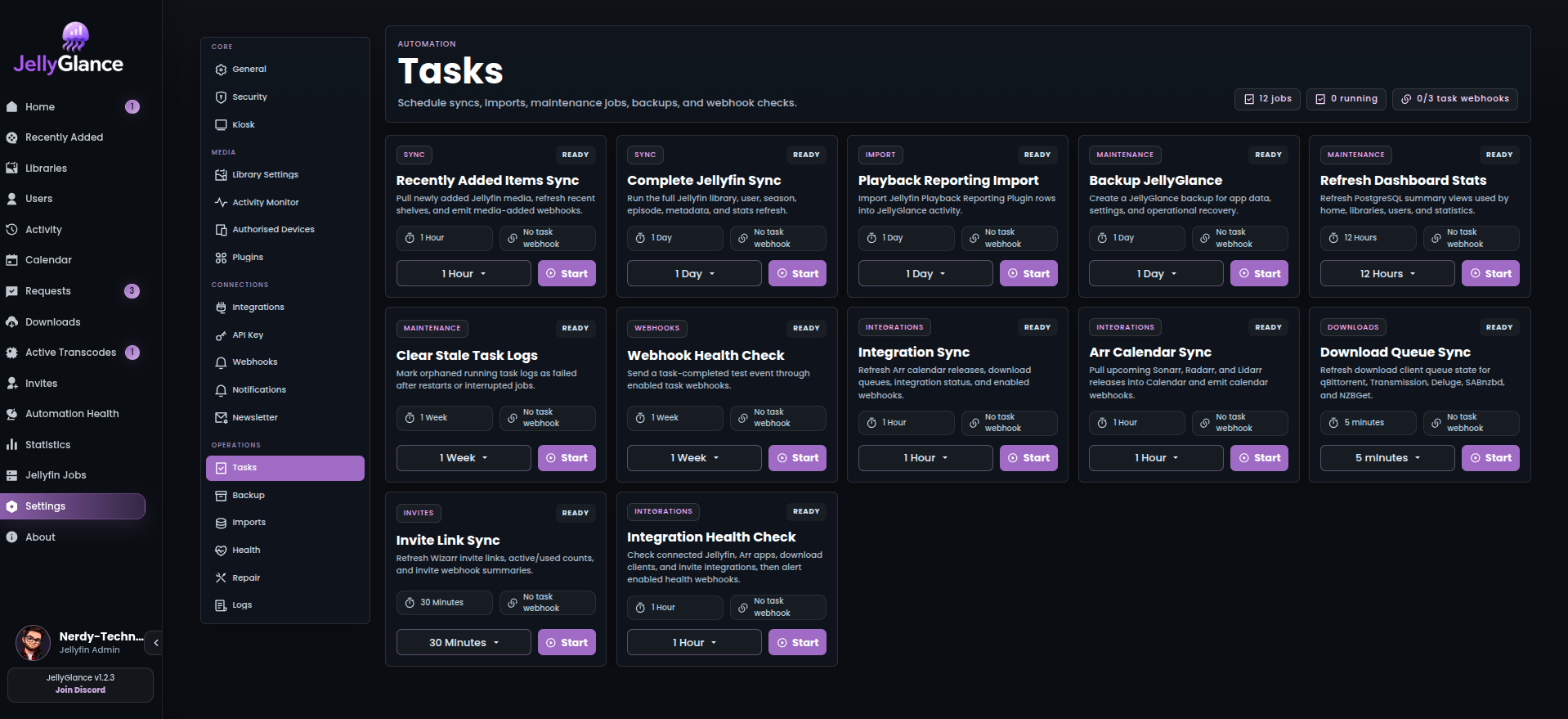
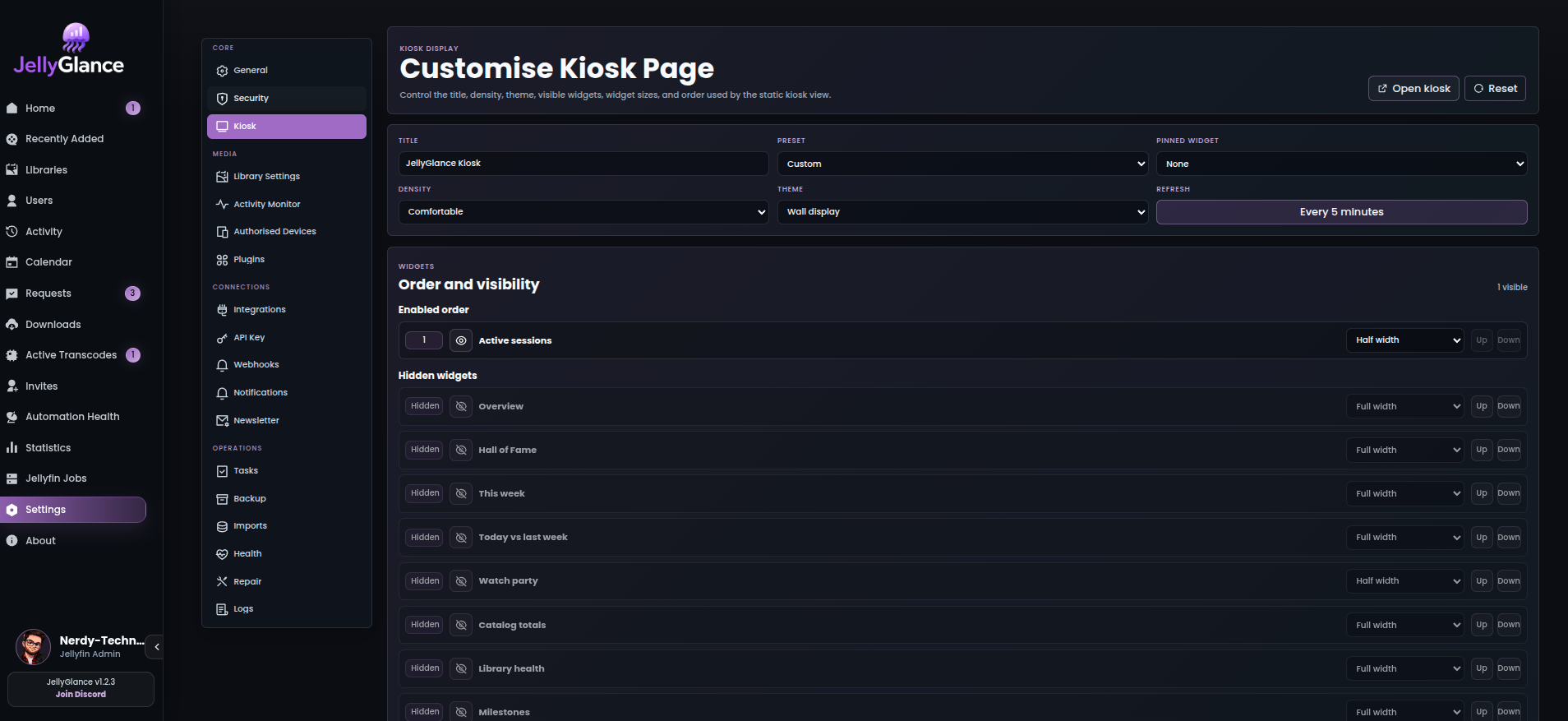
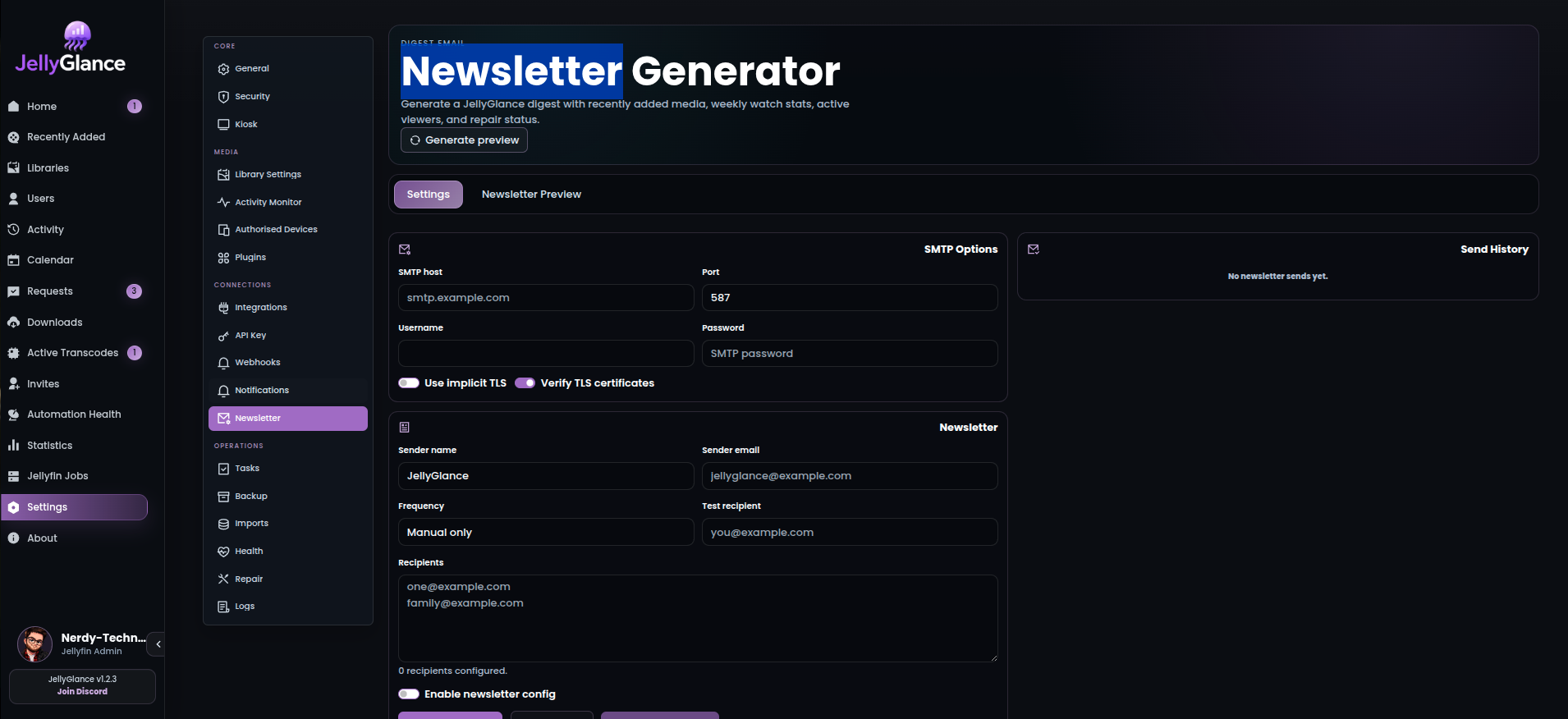
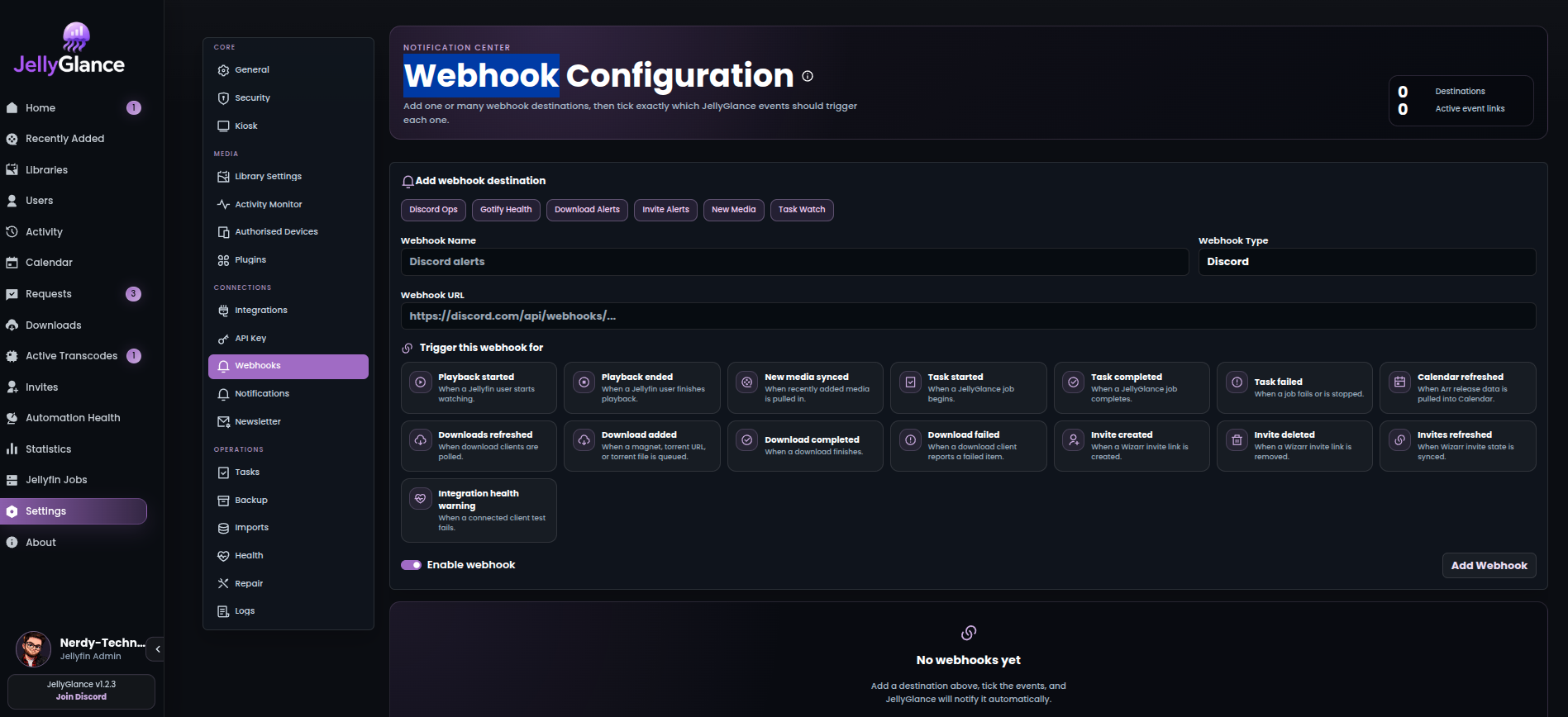
General settings for core app behavior and dashboard defaults.Integrations groups Media Server, Arr Apps, Seerr Apps, Download Clients, and 3rd party apps.Security covers auth mode, Active Sessions IP privacy, roles, and access behavior.Tasks controls manual and scheduled sync jobs for Jellyfin, downloads, health, and backups.Kiosk settings tune title, density, theme, visible widgets, widget sizes, and widget order.Library settings control scan behavior and library display options.Newsletter settings configure SMTP, recipients, previews, test sends, and digest history.Webhooks define destinations, event toggles, test delivery, and delivery history.
JellyGlance is designed to keep routine checks close together: active sessions, playback history, library changes, requests, downloads, transcodes, invites, cleanup signals, scheduled jobs, imports, webhooks, newsletters, backups, and health checks. Empty navigation stays hidden until an integration is useful.